- Select Language
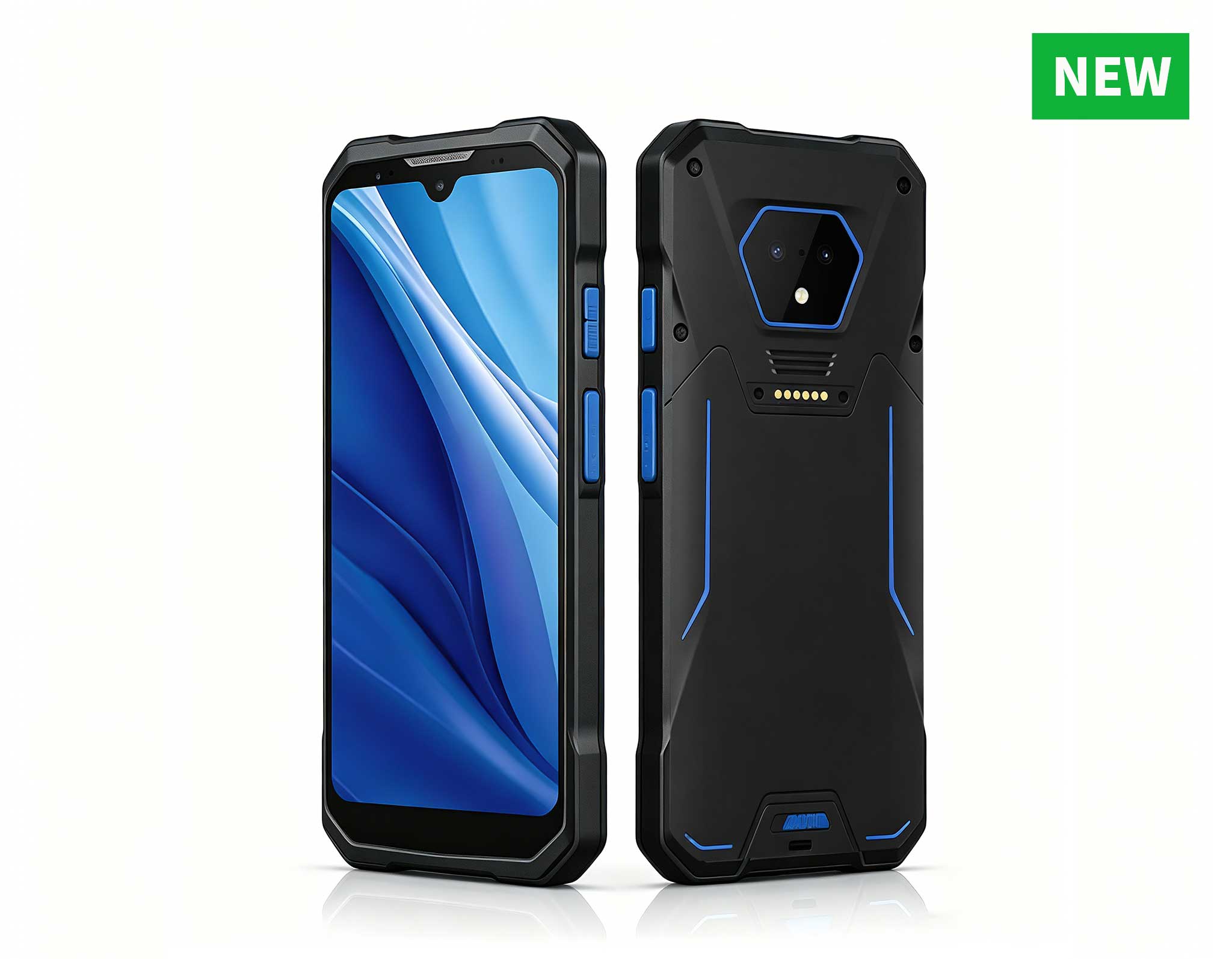
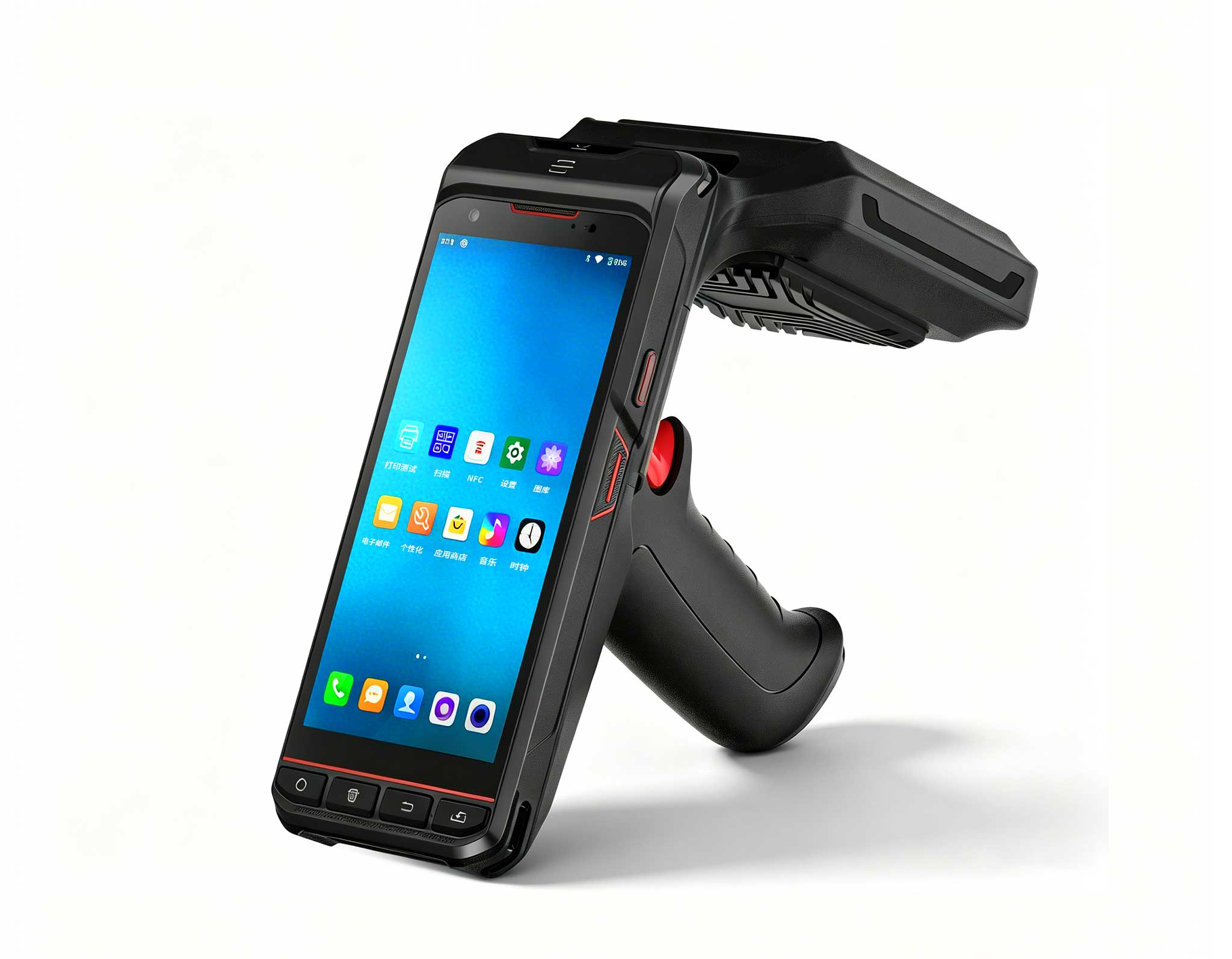
RS50 5G Rugged Handheld Terminal | 6.3" FHD+ ...
This 10-inch Android rugged tablet is designed for...
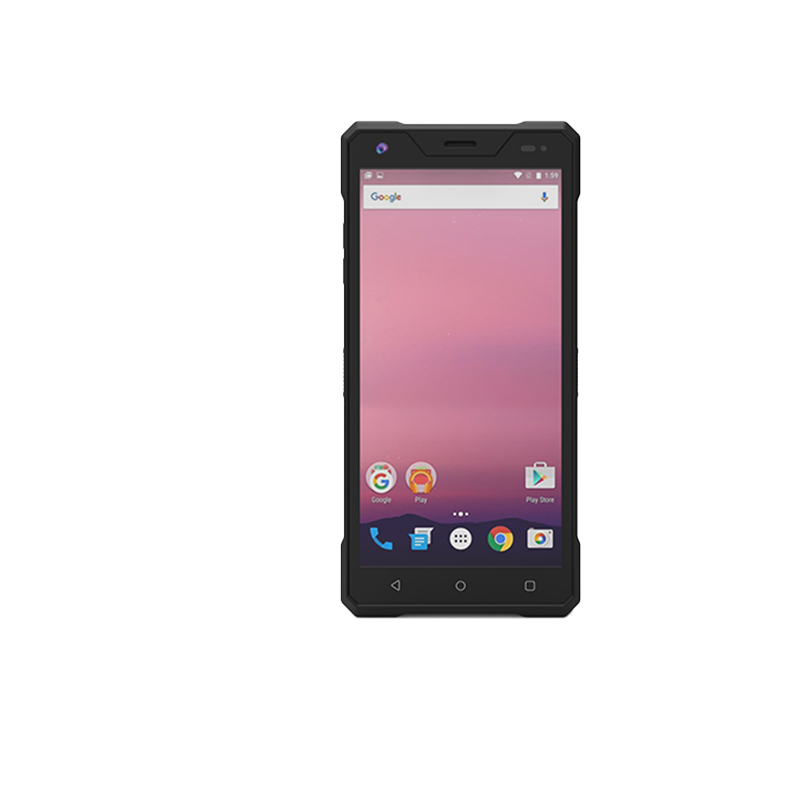
The R501 PDA combines a powerful MT6762 Octa-Core ...
Enterprise Flagship SeriesEngineered for mission-c...
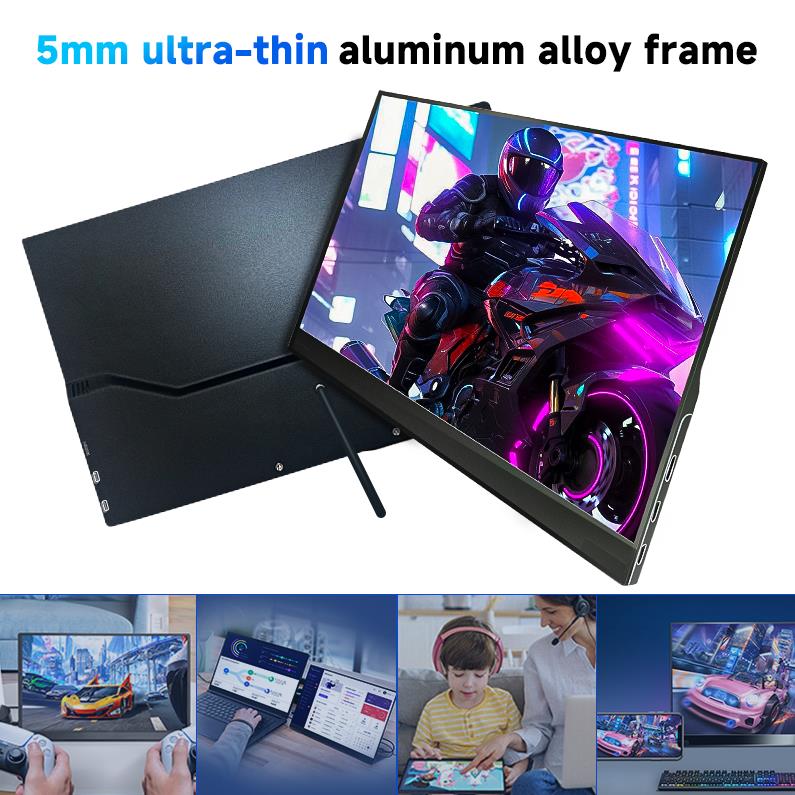
The PM158-1 is a 15.6-inch portable touchscreen mo...
Full SpecificationsModelHotus ST9‑JOSWindows 10 Pr...
The AMD Mini PC Windows 10 Pro is a compact yet po...
The PM133-2 is a 13.3-inch portable monitor featur...
I’ve spent the better part of a decade deploying signage hardware for QSR chains, retail stores, and corporate lobbies. The number one mistake I see isn’t underpowered processors or lack of RAM — it’s choosing the wrong Mini PC for the physical environment and use case. You can have the most expensive GPU on the market, but if the PC can’t survive a hot kitchen, or if its ports don’t match your kiosk peripherals, the whole project dies on the bench. This guide cuts through the spec-sheet noise and tells you exactly which hardware matters for three common signage deployments — and what happens when you get it wrong.
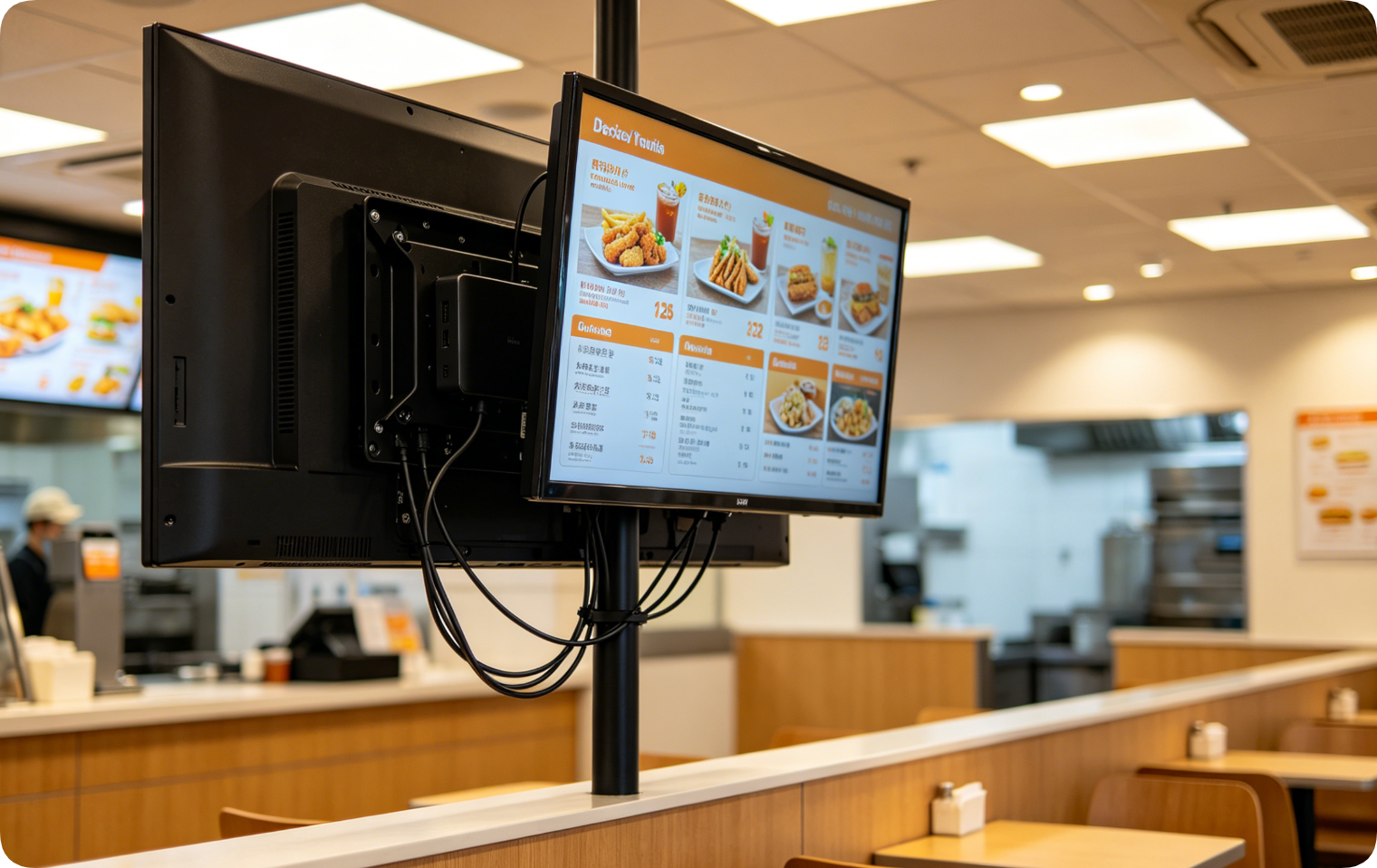
For a quick-service restaurant chain, I once deployed a full-sized desktop PC behind a 55-inch menu board. It worked, but the fan noise annoyed customers, the heat buildup shortened the PC’s life, and the bulky chassis made VESA mounting a nightmare. That’s when I switched to the Palm-sized miniPC. This N100-based unit is literally the size of your palm — fanless, VESA-mountable, and dual HDMI output. For a single-screen digital menu board, reception display, or waiting room sign, this is the sweet spot. The fanless design means zero dust intake and no moving parts to fail in a dusty kitchen or lobby. The dual HDMI lets you run two screens if needed (e.g., a menu board and a secondary promo display). The mistake people make here is over-specifying: they buy a Core i7 with 32GB RAM for a single 1080p menu board. That’s wasted money and heat. The N100 handles 4K video playback effortlessly. If you try to cram a desktop tower behind a TV, you’ll overheat, struggle with cable management, and waste budget.
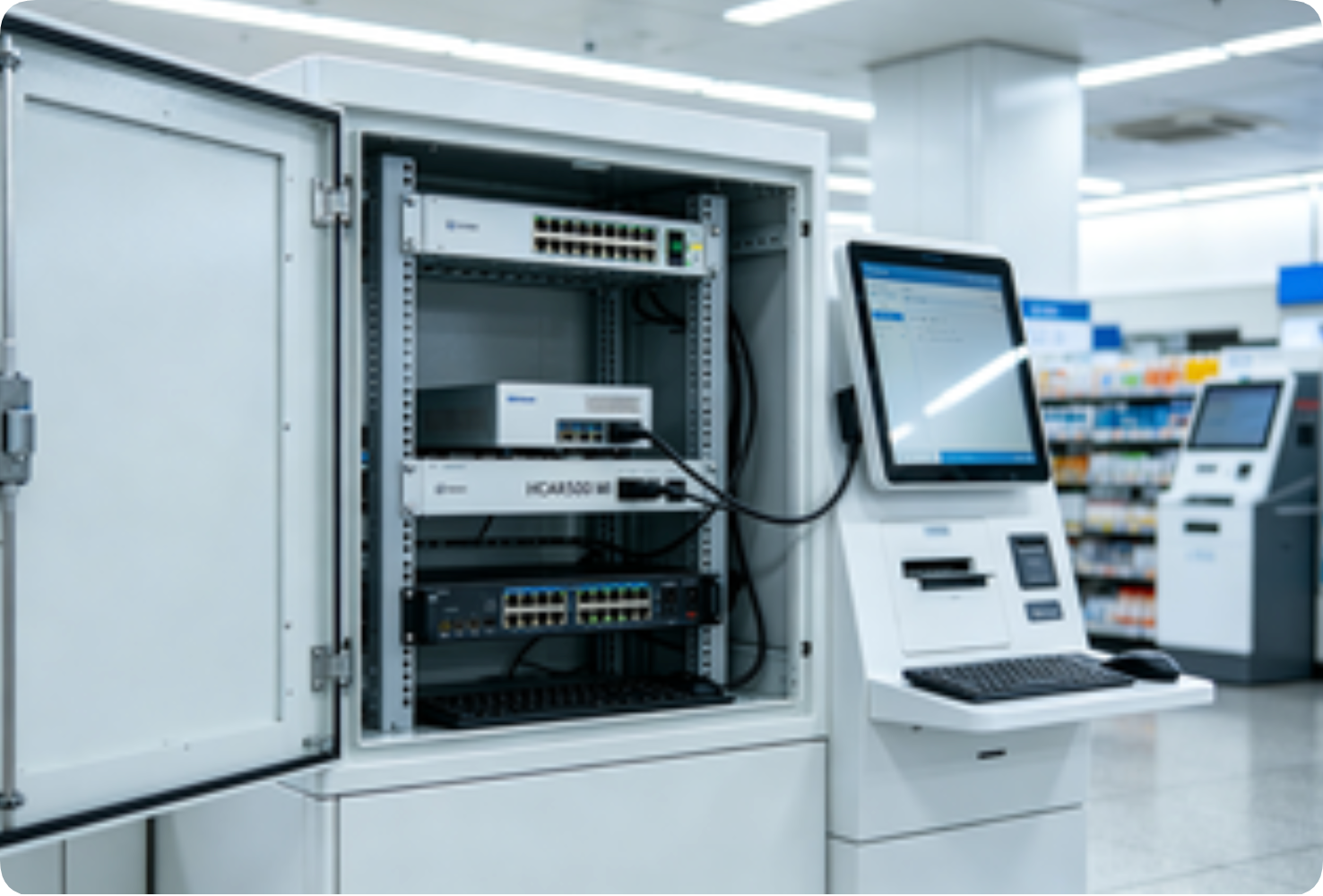
Interactive kiosks are a different beast. They run 24/7, they’re inside enclosures with poor airflow, and they need to talk to touchscreens, barcode scanners, receipt printers, and payment terminals. I’ve seen standard consumer Mini PCs fail in kiosks within six months because the operating temperature range was too narrow, or because they lacked COM ports for serial peripherals. The HCAR5000 MI solves this with an industrial design: Core i5/i7 options, dual LAN, multiple COM ports, and GPIO for external controls. The wider operating temperature range (-20°C to 60°C) means it survives inside a kiosk enclosure that bakes in direct sunlight or near a kitchen exhaust. The dual LAN allows for separate networks — one for the kiosk traffic, one for remote management. If you pick a standard Mini PC here, you’ll face random reboots, peripheral disconnects, and eventual thermal shutdown. The HCAR5000 MI is built for that environment. It’s not sexy, but it’s reliable.
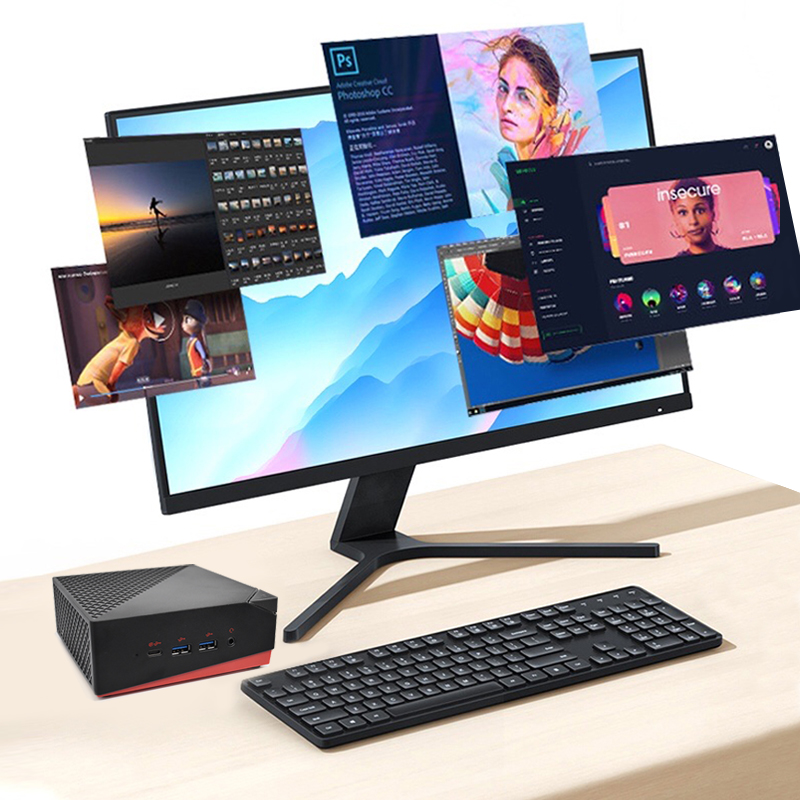
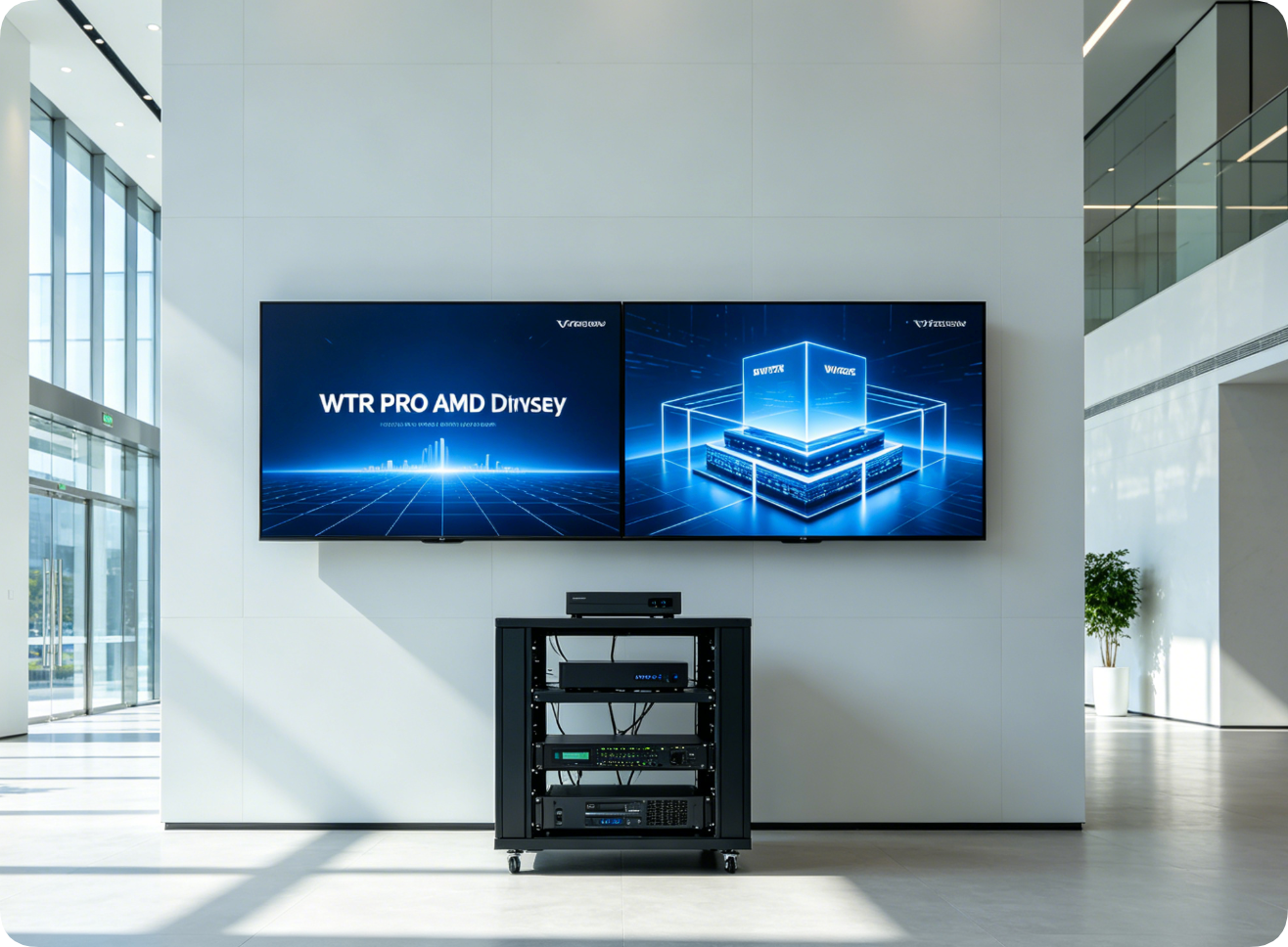
Now we get to the fun stuff. Video walls, 3D digital signage, and immersive retail experiences need GPU horsepower. I once used a standard Intel UHD Graphics Mini PC to drive a 2×2 video wall. The result? Stuttering playback, unsynced screens, and a client who was furious. The WTR PRO AMD changes that with AMD Ryzen processors and Radeon graphics. It supports 4K multi-display output across multiple screens — perfect for video walls, 3D rendered content, or high-frame-rate signage. The mistake here is thinking any Mini PC can drive four 4K screens smoothly. You need the GPU. The WTR PRO AMD handles immersive retail displays, museum exhibits, and corporate lobby video walls. If you try to run a video wall on a low-power N100 or even a Core i5 without dedicated graphics, you’ll get frame drops and screen tearing. This unit is the right tool for that job.
| Spec | Palm-sized miniPC | HCAR5000 MI | WTR PRO AMD |
|---|---|---|---|
| Processor | Intel N100 (Alder Lake-N) | Intel Core i5/i7 (12th/13th Gen) | AMD Ryzen 5/7 (5000/7000 series) |
| RAM | 8GB / 16GB DDR4 | 8GB – 32GB DDR4 | 16GB – 64GB DDR4/DDR5 |
| Storage | 128GB – 512GB M.2 SSD | 256GB – 1TB M.2 SSD | 512GB – 2TB M.2 NVMe |
| GPU | Intel UHD Graphics (integrated) | Intel UHD / Iris Xe (integrated) | AMD Radeon Graphics (integrated, high-performance) |
| Display Outputs | 2× HDMI 2.0 | 2× HDMI + 1× DP (optional) | 4× HDMI 2.0 / DP (multi-stream) |
| Form Factor | Palm-sized, 0.5L | Compact industrial, 1.2L | Compact performance, 1.0L |
| Fanless | Yes | Yes (industrial fanless design) | No (active cooling, high-performance) |
| Best Deployment Scenario | Single-screen menu boards, reception displays, waiting rooms | Interactive kiosks, self-service terminals, 24/7 industrial | Video walls, 3D signage, immersive retail, multi-4K |
| Ideal Screen Count | 1–2 screens (1080p or 4K) | 2–3 screens (1080p/4K) | 4+ screens (4K each) |
Let me give you two quick war stories. First: a retail chain installed a standard consumer Mini PC in a kiosk near a bakery oven. Within three months, the PC started thermal throttling and eventually died. The replacement cost and downtime wiped out their savings. They should have used the HCAR5000 MI with its wide temperature range. Second: a museum tried to run a 3×1 video wall on a low-power Celeron Mini PC. The video stuttered, and the exhibit looked unprofessional. They swapped to the WTR PRO AMD, and it ran flawlessly. The lesson: match the hardware to the environment and workload, not the price tag.
Before you buy, ask yourself these three questions. Your answers will point you to the right Mini PC every time.
Wall-mounted or enclosed? If it’s behind a TV or in a kiosk, you need fanless (Palm-sized or HCAR5000). If it’s on a shelf with airflow, active cooling is fine (WTR PRO).
Single screen or video wall? One or two screens? Go Palm-sized. Three or more screens with 4K? Go WTR PRO AMD.
8 hours or 24/7 operation? For 24/7 kiosks or industrial environments, choose the HCAR5000 MI with industrial temperature range and COM ports.
Get these three right, and you’ll avoid the most common deployment failures. Get them wrong, and you’ll be swapping hardware in six months. Choose wisely.