- Select Language
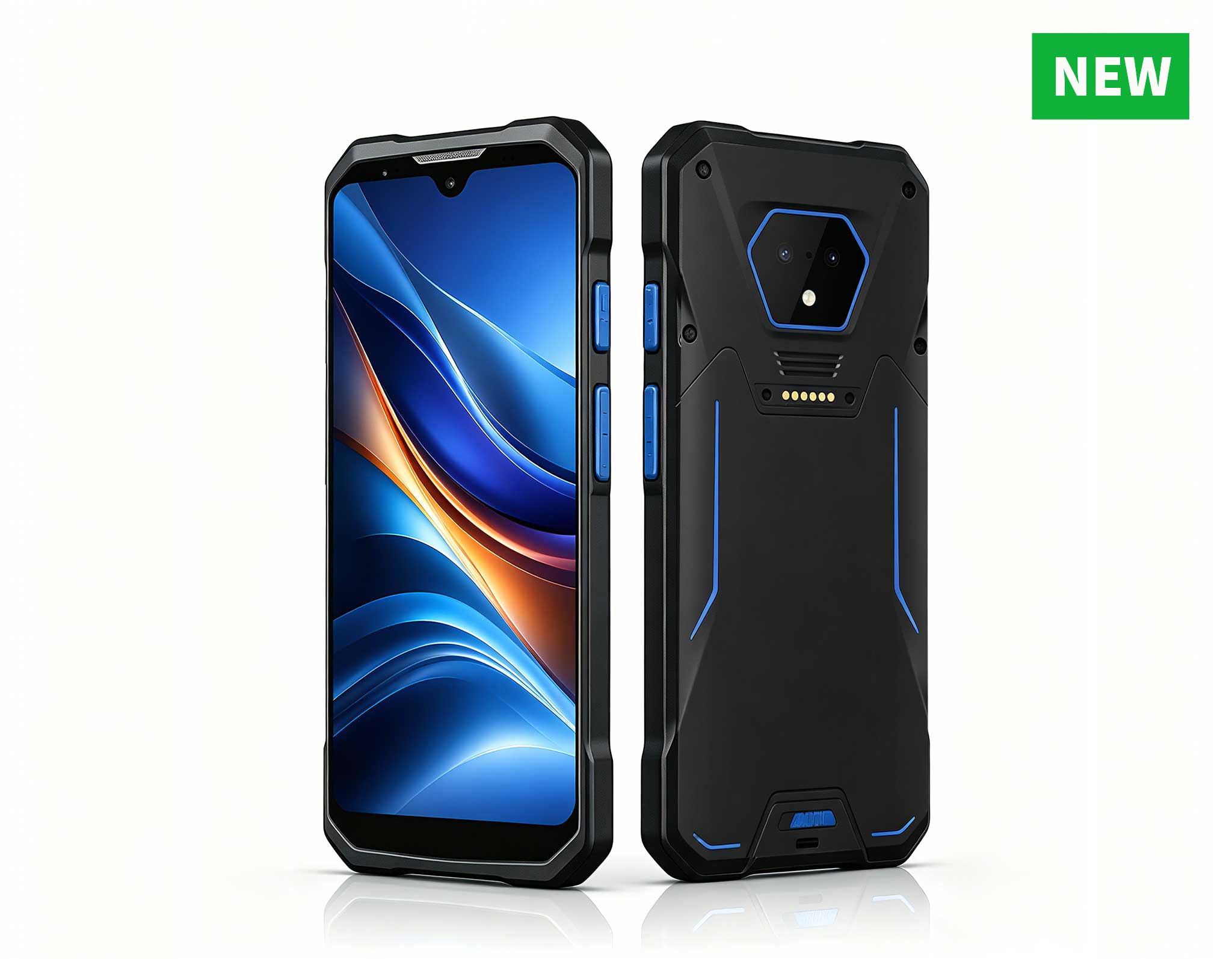
The R501 PDA combines a powerful MT6762 Octa-Core ...
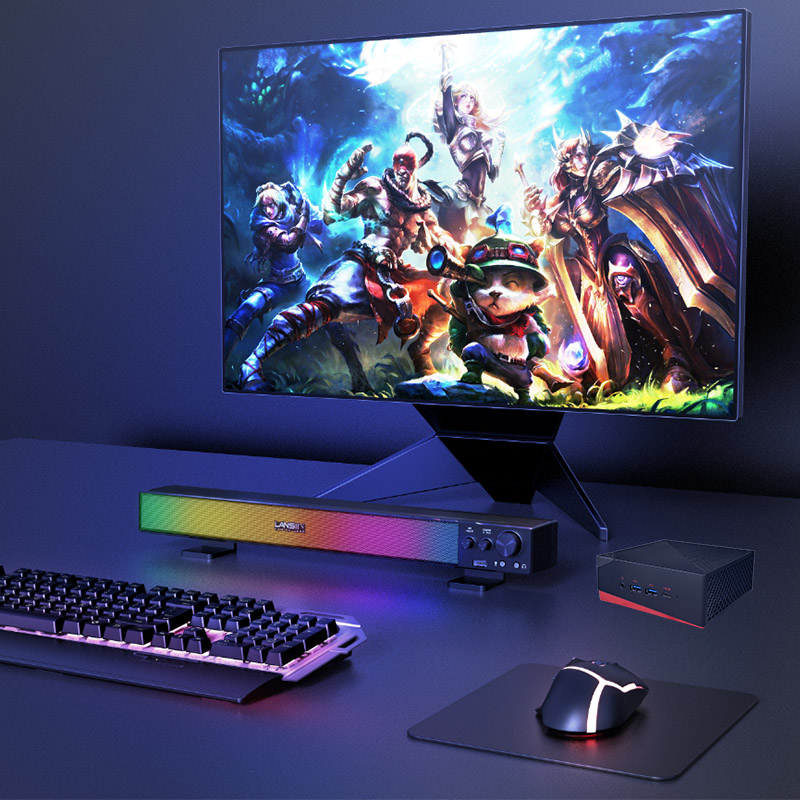
Technical SpecificationsModel: Palm-sized miniPCTy...
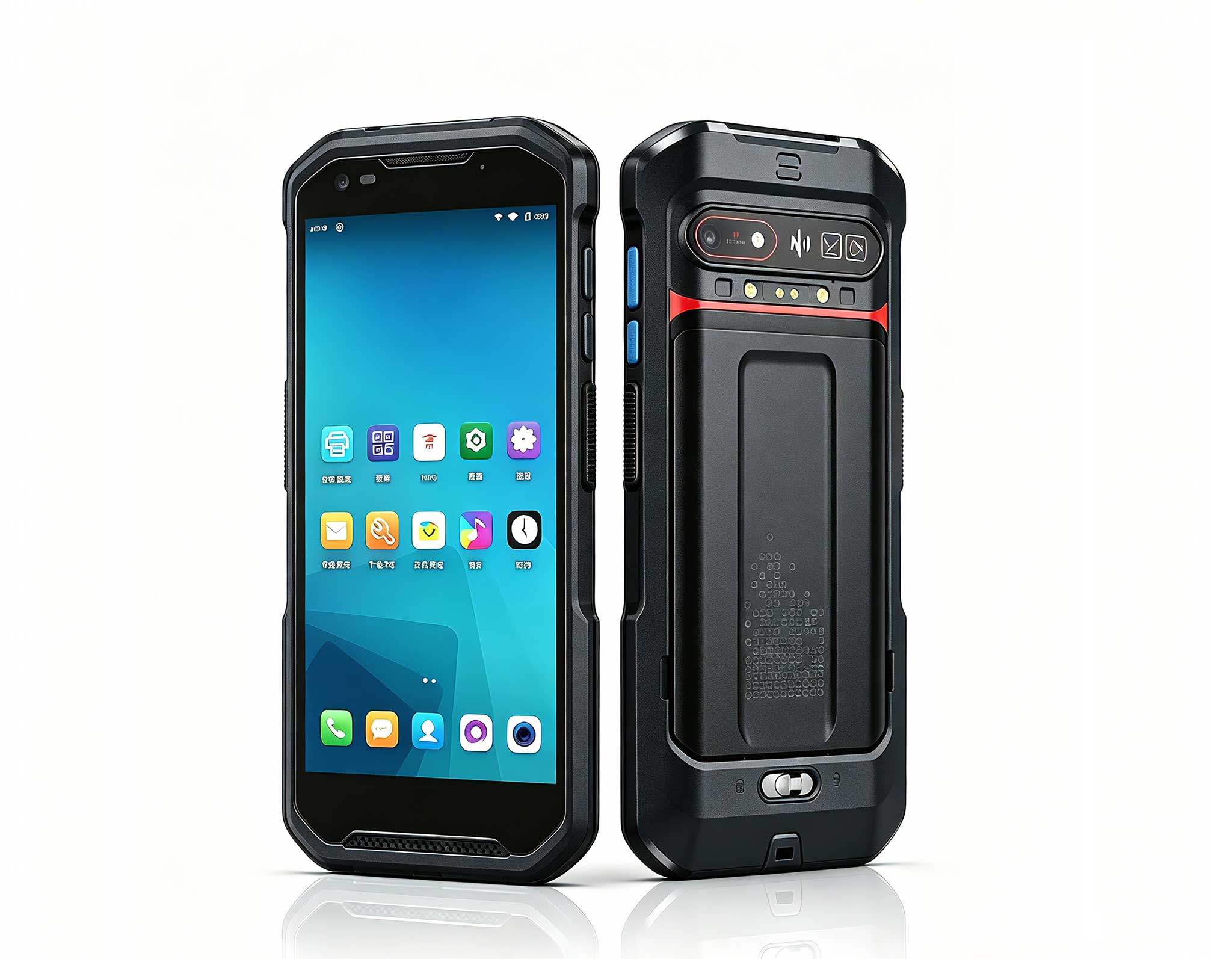
R366-S Thin 5.5-inch Industrial PDA | Qualcomm Oct...
RS51 4G Rugged Handheld Terminal | 6.3" FHD+ ...
Technical SpecificationsModel: Palm-sized miniPCTy...
The F505 Handheld PDA is a compact, high-performan...
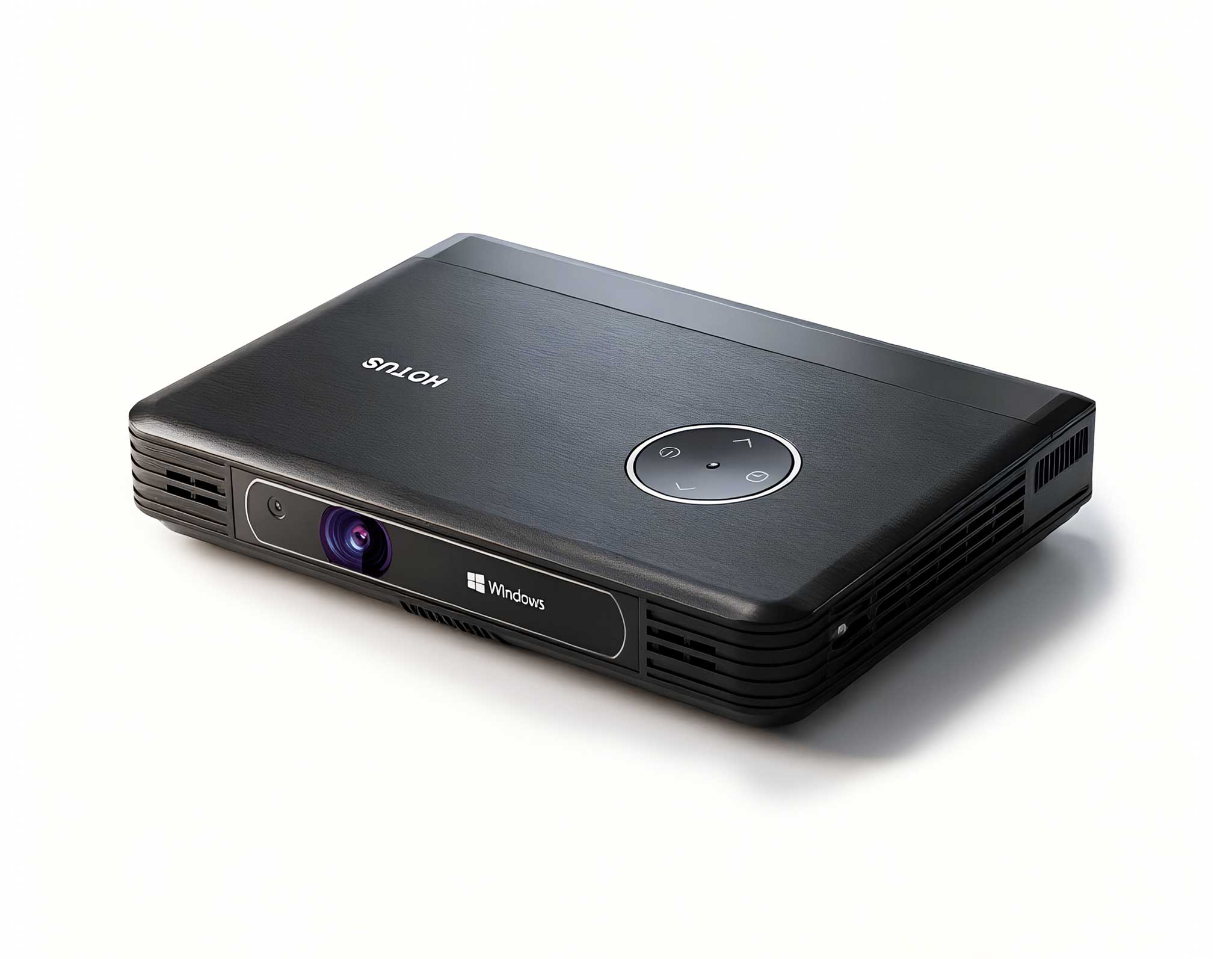
One Device, Dual Functions – A Projector and a Com...
Explore our customized PDA designed for versatile ...
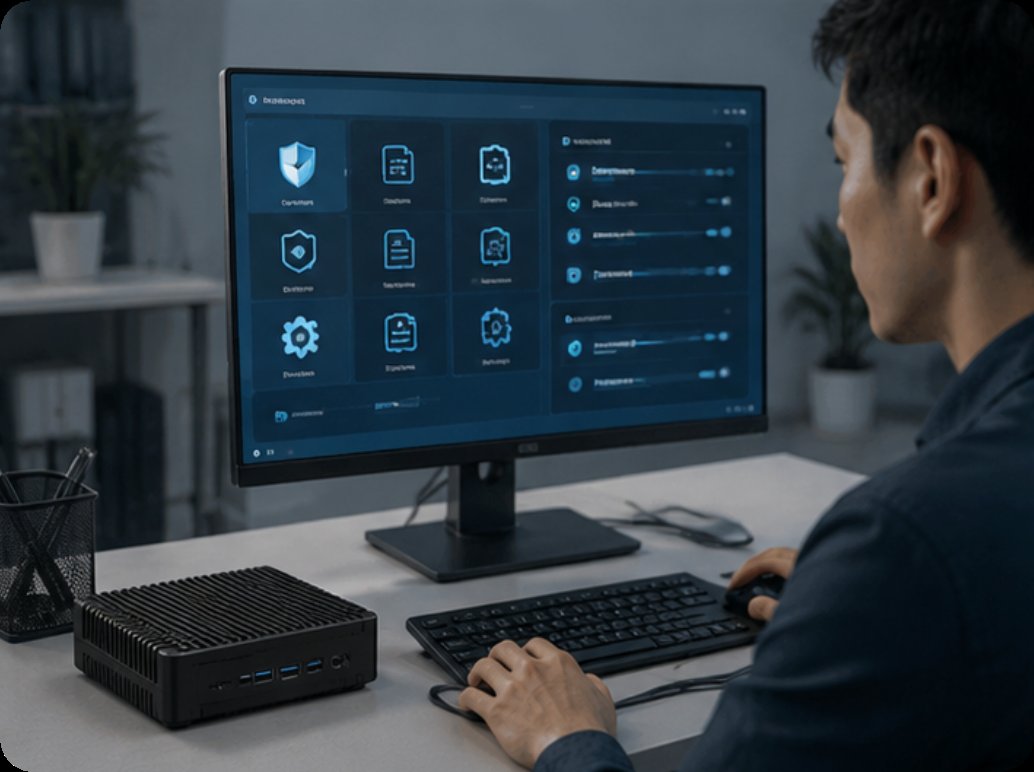
Over the years, I’ve worked side by side with IT directors in finance, healthcare, and education. The conversation around virtual desktop infrastructure (VDI) has shifted dramatically — it’s no longer just about trimming hardware budgets. Today, it’s about staying on the right side of regulators. When you’re dealing with patient records, credit card data, or student transcripts, every endpoint is a potential leak. That’s exactly why I keep coming back to a Palm-sized miniPC as the foundation for a compliant cloud terminal. Its compact, fanless chassis eliminates moving parts and cuts down failure points, but the real win is architectural: all data processing happens on secure servers, while the endpoint stores absolutely nothing locally. If a device walks off or gets stolen, your sensitive data stays locked away. For organizations under GDPR, HIPAA, or PCI-DSS, this design is a game-changer. In this walkthrough, I’ll show you how to deploy a fully compliant VDI cloud terminal using our dedicated thin client vdi solutions, so you can meet regulatory demands from the very first boot.
Before you tear open that box, take a breath and build a solid checklist. Compliance doesn’t start at configuration — it starts with planning. Here’s what you need lined up:
Device Inventory: One Palm-sized miniPC per user or shared station. Make sure each unit ships with the power adapter, VESA mount bracket, and screws. Don’t forget a standard HDMI or DisplayPort cable for the monitor.
Network Environment: For compliance, a wired Ethernet connection is your best friend. If you must use Wi-Fi, enforce WPA3 encryption and strict network segmentation. Your VDI server should live on a separate VLAN — far away from guest networks.
Server and Software: You’ll need a VDI broker (VMware Horizon, Citrix, or Microsoft RDS) already humming on your server. The miniPC will connect directly to that broker. Also grab the latest firmware for the device from the Hotus support page.
User Access Policies: Define exactly who gets access to which virtual desktop. For compliance, enforce multi-factor authentication (MFA) and set session timeouts. Document every policy before you deploy.
Physical Security: Because the Palm-sized miniPC is so tiny, use the included VESA mount to attach it behind the monitor. This prevents tampering, accidental disconnection, and casual theft.
Open the box and cross-check everything against the packing list. The Palm-sized miniPC is surprisingly light — under 200 grams — so handle it like a piece of precision gear. Inspect the ports: typically you’ll find two USB 3.0, one HDMI, one VGA (on select models), an Ethernet port, and a 3.5mm audio jack. Verify the power adapter matches your local voltage (100–240V AC). If you ordered the version with a TPM (Trusted Platform Module) chip, double-check the BIOS settings allow you to enable it. TPM is non-negotiable for compliance because it delivers hardware-level encryption and attestation.
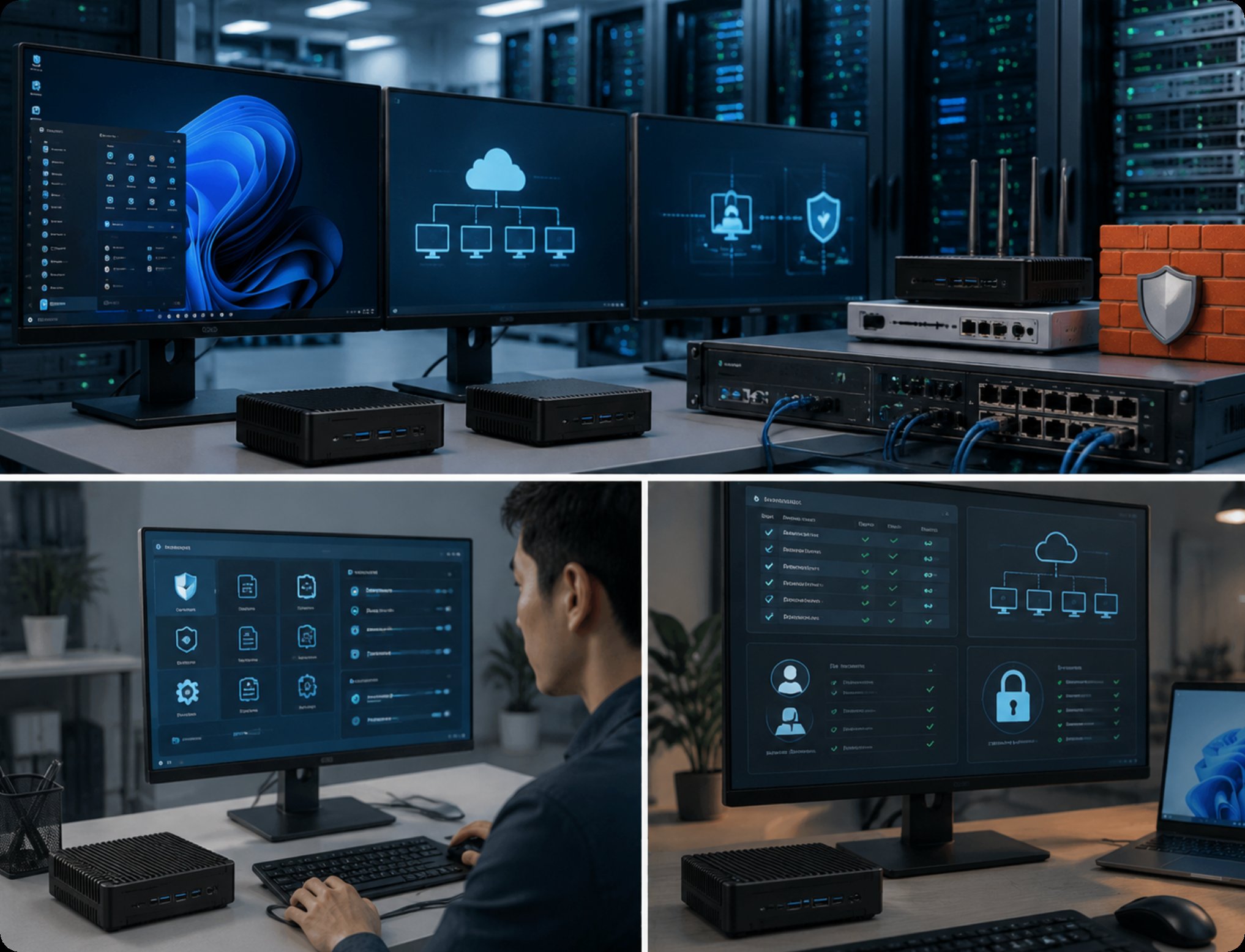
For a compliant setup, location matters more than you think. The best spot for your Palm-sized miniPC is mounted behind the monitor using the VESA bracket. This keeps the device out of sight and dramatically reduces the chance of someone unplugging it or walking off with it. In shared workspaces, add a cable lock through the Kensington slot. Avoid placing the miniPC on the floor or near heat vents. The fanless design relies on passive cooling, so leave at least 5 cm of clearance around the device for airflow. In healthcare environments, consider cleaning protocols — the metal casing can be wiped down with isopropyl alcohol wipes without damage.
Power on the device and plug it into your network via Ethernet. On first boot, you’ll be prompted to select a language and time zone. For compliance, configure the device to pull an IP address from a DHCP server on your secure VLAN — never the default VLAN. Next, enable the TPM module in the BIOS. Press DEL or F2 during boot, navigate to the Security tab, and set TPM to "Enabled" or "Firmware TPM." Save and exit. Once the operating system loads (typically Windows 10/11 IoT or Linux), install the VDI client software from your broker. Point the client to your VDI server’s URL. For extra security, disable local storage access and USB mass storage devices via group policy — this guarantees no data can be copied to or from the terminal.
After configuration, run a real-world test. Log in with a test user account that has MFA enabled. Confirm the virtual desktop loads within 30 seconds over a standard 100 Mbps connection. Verify all USB peripherals (keyboard, mouse, smart card reader) work correctly. If your industry requires session recording, test that too. Monitor device temperature with a simple tool like HWMonitor; the Palm-sized miniPC should stay below 60°C under load. If you see high latency, check your switch ports aren’t oversubscribed. Finally, enable automatic updates for both the VDI client and the device firmware so security patches arrive without delay.
Compliance isn’t a one-and-done deal. Build a weekly checklist: verify all terminals are online, scan event logs for failed login attempts, and confirm no unauthorized USB devices have been connected. The Palm-sized miniPC has a small LED indicator — if it’s blinking amber, that usually signals a network issue. Train your helpdesk team to perform a simple reboot by holding the power button for 10 seconds. For firmware updates, Hotus provides a USB flashing tool; schedule updates during maintenance windows. Keep a physical inventory log of each device’s serial number and assigned user. Auditors love that log.
Issue 1: The device does not boot after mounting.
Solution: Check the power adapter connection. Some models of the Palm-sized miniPC use a USB-C power input, so make sure the cable is fully seated. If the LED stays dark, try a different outlet.
Issue 2: The VDI client cannot connect to the server.
Solution: Verify the network cable is plugged into the correct port. Run a ping test to the VDI server IP. If ping fails, review your VLAN configuration and firewall rules. For compliance, ensure port 443 (HTTPS) is open for the VDI broker.
Issue 3: USB peripherals are not recognized.
Solution: First, check if USB ports are disabled in BIOS or group policy. You may have intentionally blocked them for compliance. If you need to allow specific devices (like a smart card reader), create a USB allowlist in group policy. Also try a different USB port on the miniPC.
Issue 4: The device overheats in a closed cabinet.
Solution: The fanless design needs airflow. If the miniPC is inside a locked cabinet, drill ventilation holes or add a small USB fan. Maximum ambient operating temperature is 40°C. If the device regularly exceeds 70°C, move it to an open area.
Issue 5: TPM is not detected during compliance audit.
Solution: Re-enter the BIOS and confirm TPM is set to "Enabled" — not "Discrete" if your model uses firmware TPM. Update the BIOS to the latest version from the Hotus website. Some auditing tools require the TPM to be initialized; run the TPM Management console in Windows to clear and reinitialize it.
| Parameter | Palm-sized miniPC (Recommended for Compliance) | Alternative (Standard Desktop) |
|---|---|---|
| Processor | Intel Celeron N5100 / N100 (Quad-core, low power) | Intel Core i5 (Higher power consumption) |
| Memory | 4GB / 8GB LPDDR4 (Sufficient for VDI client) | 8GB / 16GB (Overkill for thin client) |
| Storage | 32GB / 64GB eMMC (No local data storage) | 256GB SSD (Risk of data leakage) |
| TPM Support | Yes (Firmware TPM 2.0) | Often disabled by default |
| Weight | Under 200 grams | Over 5 kg |
| Power Consumption | 6W – 10W (Fanless, silent) | 65W – 150W (Active cooling, noisy) |
| Best Use Case | HIPAA, GDPR, PCI-DSS compliant VDI endpoints | General office work with local apps |
As the table shows, the Palm-sized miniPC is built from the ground up for compliance. Its low power draw, fanless operation, and native TPM support make it a natural fit for regulated industries. If you need a device that balances performance and security without compromise, this is the one. For deeper hardware specs, read about our Palm-sized miniPC, which we engineered specifically for cloud terminal workloads.
To wrap it all up, here’s a printable checklist you can take to the field:
[ ] Unbox and inspect the Palm-sized miniPC. Verify TPM support.
[ ] Mount the device behind the monitor using the VESA bracket.
[ ] Connect via Ethernet to a secure VLAN. Disable Wi-Fi if not needed.
[ ] Enable TPM in BIOS. Save and exit.
[ ] Install the VDI client and configure the server URL.
[ ] Enable MFA and session timeouts in the VDI broker.
[ ] Disable USB mass storage and local admin rights.
[ ] Test the connection with a sample user account.
[ ] Log the serial number, user name, and location in your asset register.
[ ] Schedule weekly firmware and client updates.
Stick to these steps and you’ll build a virtual desktop environment that’s compliant, secure, and genuinely efficient. If you run into something I didn’t cover, explore our mini PC solutions for extra resources and support. We’re committed to helping you hit your compliance targets with hardware that just works.