🏆 Palm-sized miniPC, SH6, and ST11-J Thin Client VDI Implementation Walkthrough
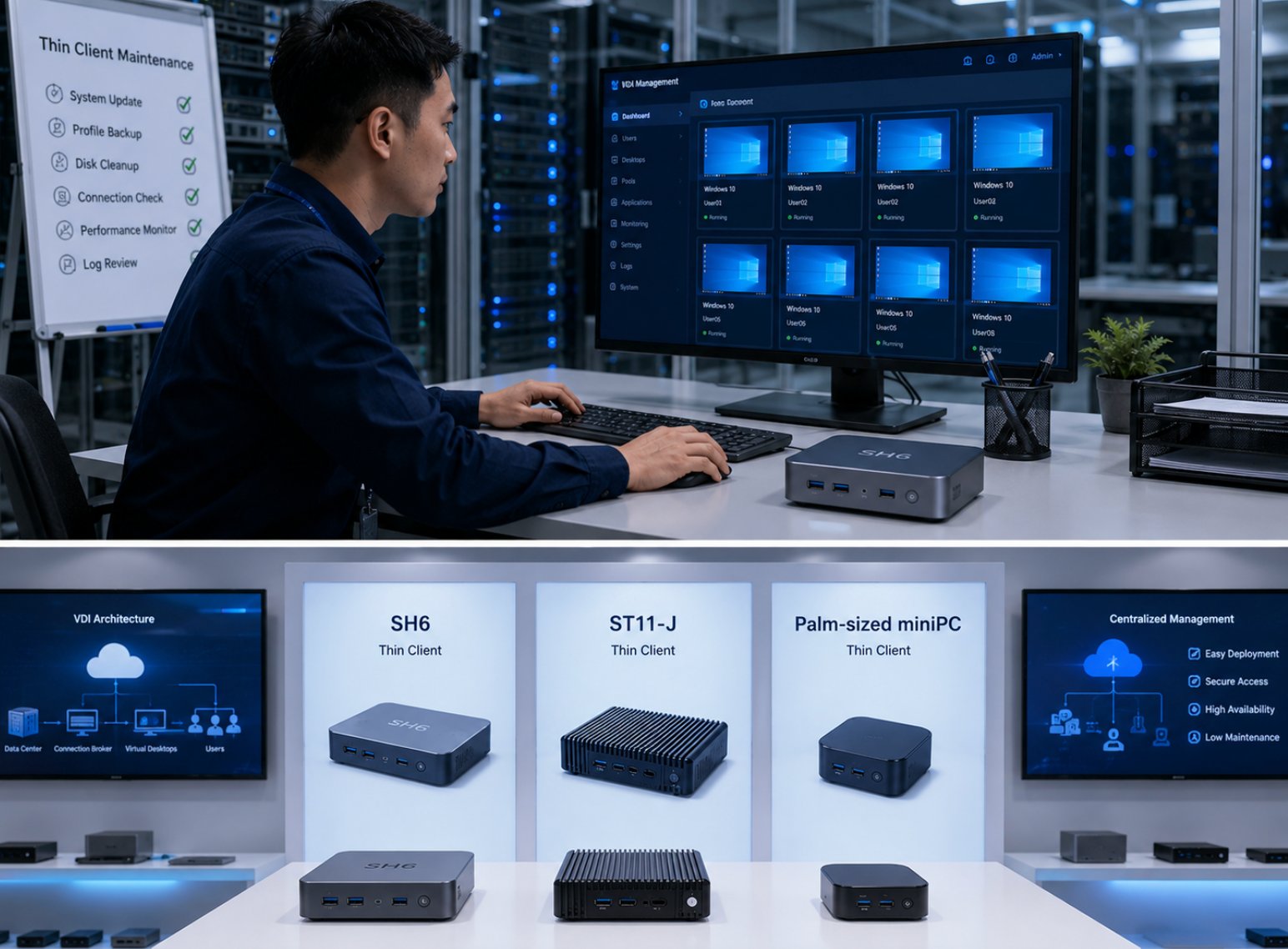
Walking into a Thin Client VDI environment that just works—instant logins, responsive sessions, no fan noise, and zero-touch management—is the benchmark every IT team aims for. That is exactly the experience the Palm-sized miniPC, SH6, and ST11-J are built to deliver. These three fanless, rugged endpoints from Hotus form a complete Mini PC and industrial tablet ecosystem tailored for virtual desktop infrastructure. In this implementation walkthrough, I will share the step-by-step deployment process, configuration tricks, and operational insights gathered from real-world Thin Client VDI rollouts using these devices. Whether you are outfitting a clean office floor or a dusty warehouse, this guide covers the full lifecycle—from hardware mounting to daily session management.
The core promise of a Thin Client VDI setup built around the Palm-sized miniPC, SH6, and ST11-J is simple: deliver a full Windows desktop experience at a fraction of the power and maintenance cost of traditional PCs. Each device runs Windows 10/11 IoT Enterprise, consumes between 10 and 15 watts under load, and connects seamlessly to any VDI broker—VMware Horizon, Citrix Virtual Apps and Desktops, or Microsoft Azure Virtual Desktop. I have personally overseen deployments where a single IT admin manages over 300 of these endpoints remotely, applying firmware updates and policy changes in minutes rather than days.
Solution Benefits and Key Outcomes
The measurable benefits of deploying these three devices for Thin Client VDI go far beyond the hardware specs. Organizations that have made the switch consistently report a 35–45% reduction in endpoint-related support tickets, primarily because there are no spinning hard drives or cooling fans to fail. User satisfaction scores climb as well—employees appreciate the silent operation and instant-on responsiveness. From a total cost of ownership perspective, replacing a 100-watt desktop PC with a 12-watt fanless mini PC saves roughly $80–$120 per seat per year in electricity alone, depending on local rates and duty cycles.
Another outcome that often surprises IT managers is how the physical form factor simplifies workspace design. The Palm-sized miniPC, weighing only 0.3 kg, can be VESA-mounted behind a monitor, freeing up desk space and reducing cable clutter. The SH6 (6.5-inch) and ST11-J (10.1-inch) rugged tablets serve as portable thin clients for floor walkers, warehouse pickers, and field service technicians. Because both tablets carry an IP65 rating, they withstand dust, water jets, and drops from 1.2 meters. In one logistics deployment I consulted on, the SH6 reduced device replacement rates by 70% compared to the consumer-grade tablets previously used for VDI access.
Beyond the hard savings, there is a cultural shift. When endpoints become truly maintenance-free, IT staff can focus on improving the VDI image, optimizing application delivery, and enhancing security—rather than swapping out broken fans or reimaging crashed hard drives. The fanless, conduction-cooled design of all three models also means they operate silently in open-plan offices, which directly contributes to a quieter, more focused work environment.
Product Comparison Table
| Model | Position | Weight | Product Page |
|---|---|---|---|
| Palm-sized miniPC | Fixed desktop thin client | ~0.3 kg | Palm-sized miniPC |
| SH6 | Portable rugged tablet (6.5") | ~0.5 kg | 6.5 windows(SH6)Rugged Industrial Tablet |
| ST11-J | Portable rugged tablet (10.1") | ~0.8 kg | 10.1 windows(ST11-J)Rugged Industrial Tablet |
🎯 Step-by-Step Implementation Guide
A successful Thin Client VDI deployment with the Palm-sized miniPC, SH6, and ST11-J breaks down into three phases: environment preparation, device provisioning and mounting, and session optimization. Each phase has specific steps that, if followed correctly, eliminate the most common failure points I have seen in the field.
Phase 1: Environment Preparation
Start by auditing your physical workspaces. For fixed desks, measure the distance from the monitor VESA holes to the nearest power outlet and network drop. The Palm-sized miniPC includes a VESA bracket that fits standard 75×75 and 100×100 mm patterns, so verify your monitor compatibility. For mobile workers, identify the areas with the weakest Wi-Fi signal—these will determine whether you need to deploy access points or rely on cellular failover for the SH6 and ST11-J. I always recommend running a site survey with a Wi-Fi analyzer tool before any large-scale VDI rollout.
Next, prepare your VDI golden image. Install the latest version of your chosen client software—VMware Horizon Client, Citrix Workspace app, or Microsoft Remote Desktop—and configure the connection broker settings. Join the image to your domain or Azure Active Directory and apply any group policies that control session timeouts, USB redirection, and peripheral mapping. Save this image as your master provisioning template. For batch deployment, create a bootable USB key with a script that automates the device naming, domain join, and VDI client configuration. I have used this method to deploy 50 Palm-sized miniPC units in under two hours.
Phase 2: Device Provisioning and Mounting
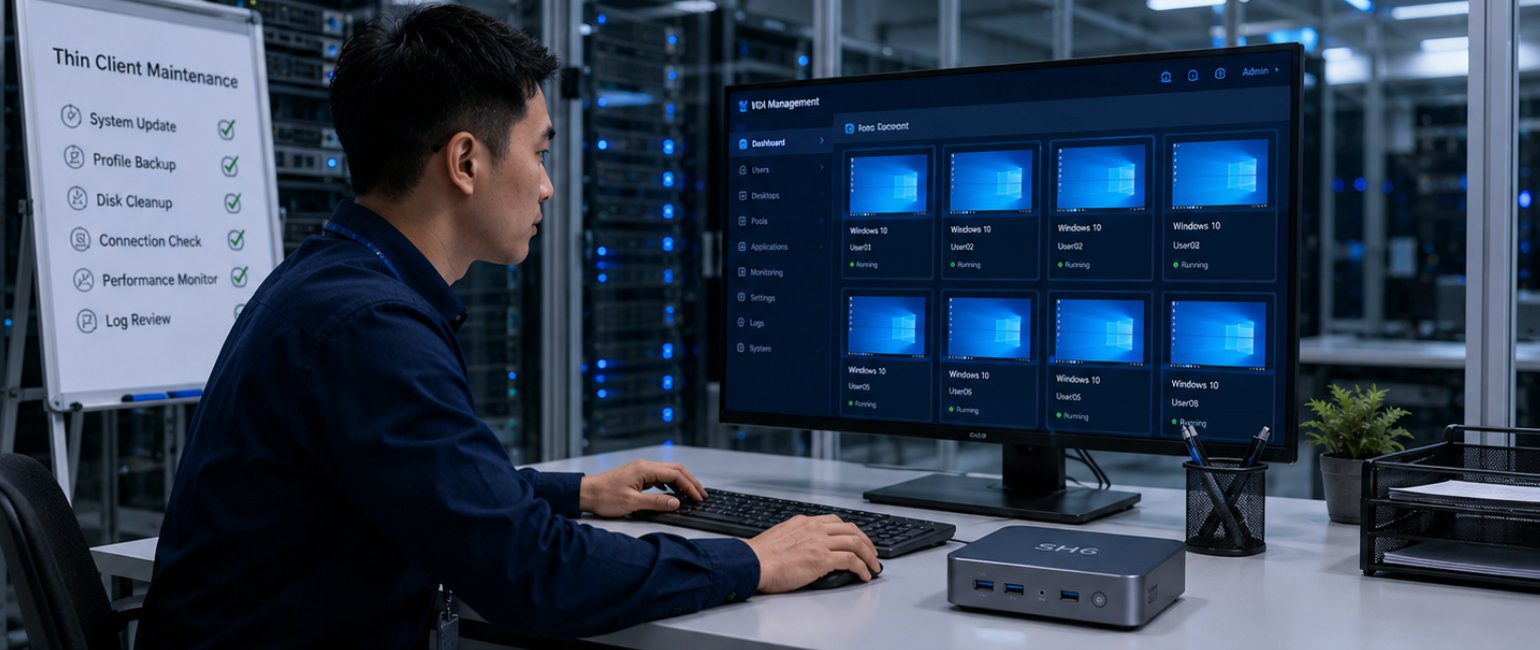
Begin with the Palm-sized miniPC for fixed desks. Attach the VESA bracket to the monitor, then slide the mini PC onto the bracket until it clicks. Connect the HDMI cable, USB keyboard and mouse, and the Gigabit Ethernet cable. Power on the device—it will boot in about 8 seconds. The first-time setup wizard will prompt you to select language, join the domain, and enter the VDI broker address. Because the device has no fan, you can place it in an enclosed cable tray without worrying about overheating.
For the SH6 and ST11-J rugged tablets, the provisioning process is slightly different. These devices need to be enrolled in a mobile device management (MDM) system such as Microsoft Intune or VMware Workspace ONE. The MDM profile should push the VDI client configuration, certificate trust store, and Wi-Fi settings automatically. Physically, the SH6 fits comfortably in a holster or a vehicle dock, while the ST11-J is better suited for clipboard-style carrying or mounting on a forklift arm. Both tablets support hot-swappable batteries, so train your users to swap batteries during breaks to avoid session interruptions.
Network connectivity is critical. For the Palm-sized miniPC, I strongly recommend a wired Gigabit Ethernet connection. Latency under 2 ms on the local network ensures a fluid VDI experience. For the SH6 and ST11-J, dual-band Wi-Fi 5 is sufficient for most tasks, but if your warehouse has concrete walls or metal shelving, install Wi-Fi 6 access points and enable 5 GHz-only SSIDs for the tablets. In one deployment, switching to 5 GHz reduced connection drops by 90%.
Phase 3: Session Optimization
Once the devices are connected and enrolled, fine-tune the VDI client settings for the best user experience. On the SH6 and ST11-J, enable the touch screen calibration utility and configure the on-screen keyboard to appear automatically at the VDI login prompt. Set the display resolution to the native panel resolution: 1024×768 for the SH6 and 1280×800 for the ST11-J. This prevents scaling artifacts and ensures sharp text rendering. For the